
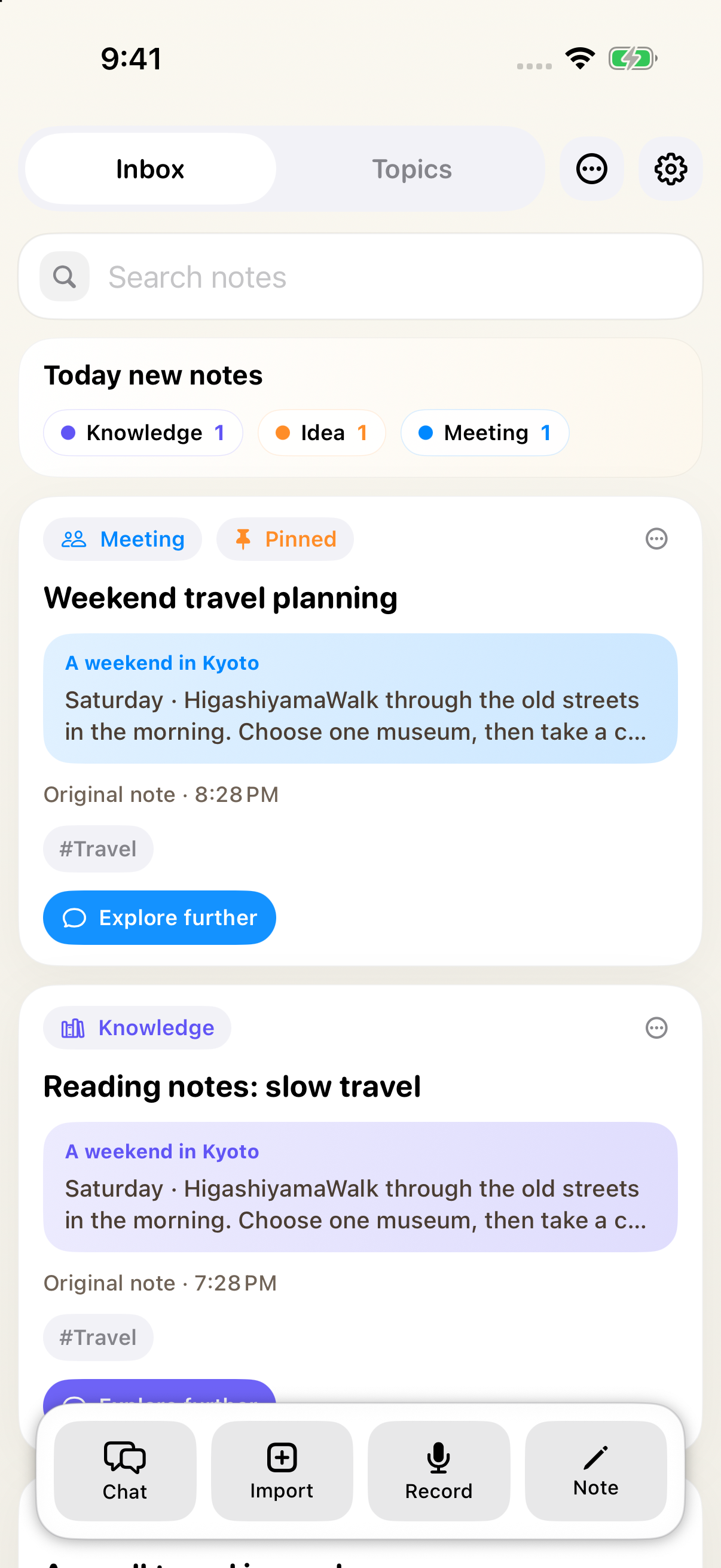
Capture text, images & files
| What you have | Where to start | What happens next |
|---|---|---|
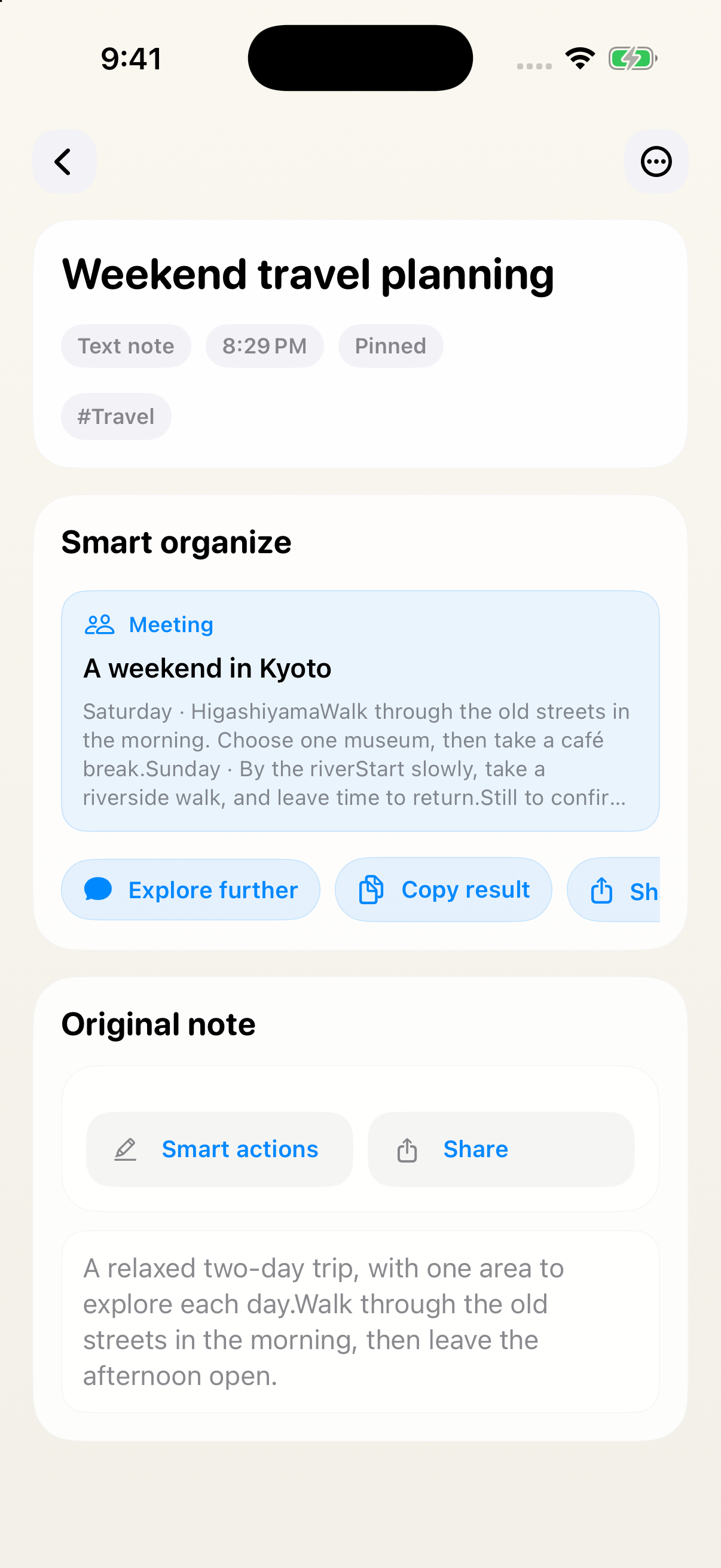
| An idea, task, or quick thought | Note | Organize it, edit the original, or add it to a Topic |
| A photo, screenshot, or paper document | Import, then camera or photos | Recognize the content and discuss the image |
| A PDF or text document | Import, then files | Keep the original file, preview, share, and organize it with AI |
| Dictation, a discussion, or a meeting | Record on the home screen or inside a Topic | Transcribe and organize it, then save a note |
| A web page or content from another app | AnyNotes in the system share sheet | Collect the material in your AI Inbox |
| A question you want to explore | Chat | Discuss it, then save an organized note when useful |
| A passing thought | A widget or Quick Capture shortcut | Open the app’s text editor directly |
File notes accept PDF, TXT, MD, and Markdown, up to 50 MB per file. Recordings allow up to one hour of recorded audio, excluding pauses. Widgets open the app for typing; images, files, and web pages use Import or the share sheet.
Search titles, text, tags, and AI results, or use #tag searches. Pin important notes and archive those you want to set aside.